



Offline Mode
Visit our branch network and complete the account opening process with the assistance of our representatives
Choose the method that works best for you
Visit our branch network and complete the account opening process with the assistance of our representatives
Complete the entire account opening process digitally from the comfort of your home
Complete your account opening through our branch network
DP + Trading / Only DP / Only Trading Account
If you wish to open DP + Trading / Only Trading account, select the option DP & Trading. If you wish to open only DP account, select the option Only DP.
Sign up by filling your details (PAN, Mobile, Email, and Date of Birth).
AADHAAR & MOBILE NUMBER SHOULD BE LINKED.
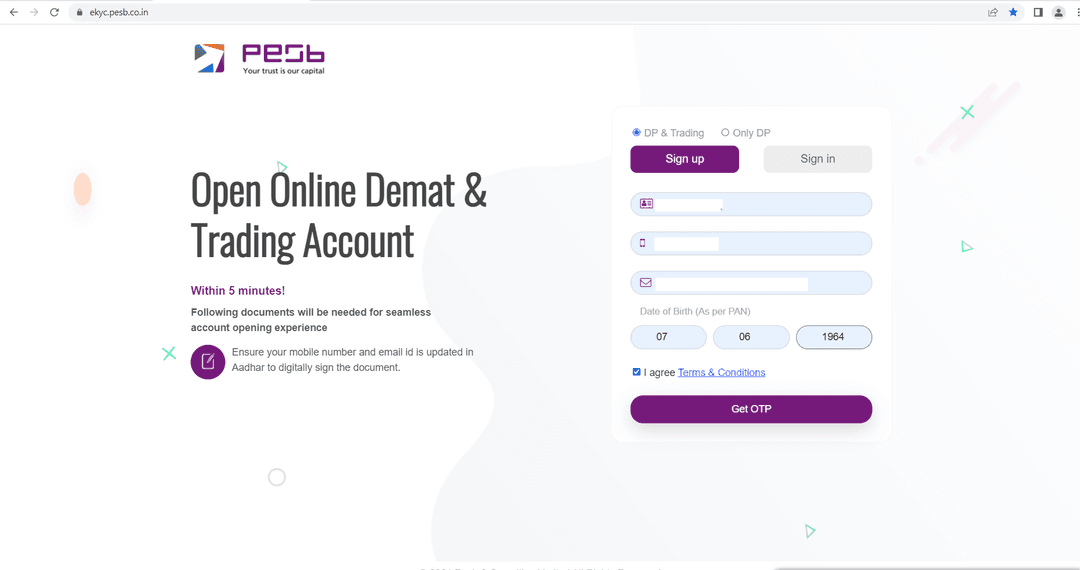
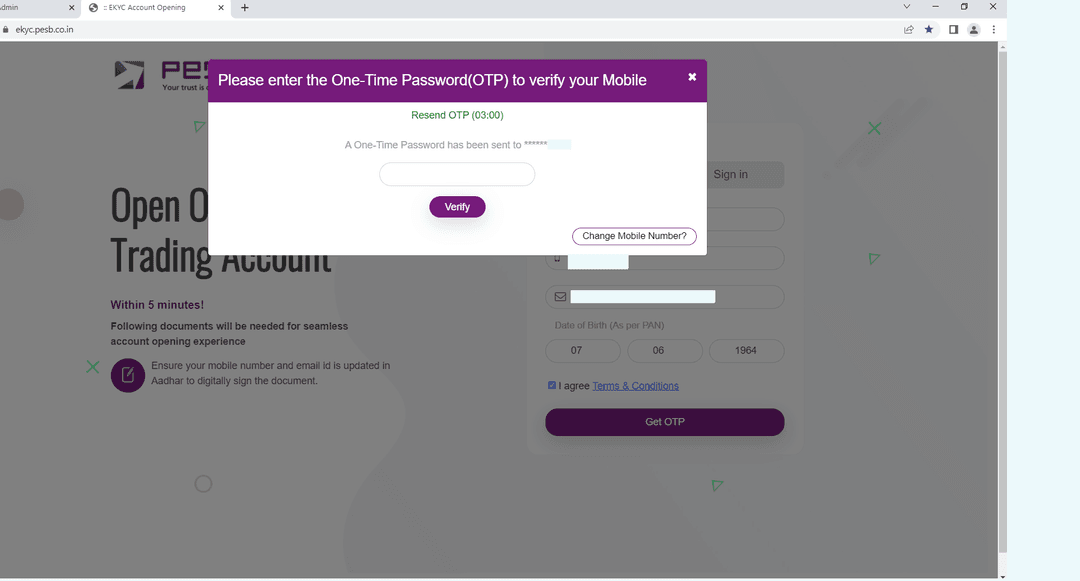
Verify your mobile number by entering the OTP received via SMS.
This verification ensures that the mobile number provided belongs to you and will be used for future communications.
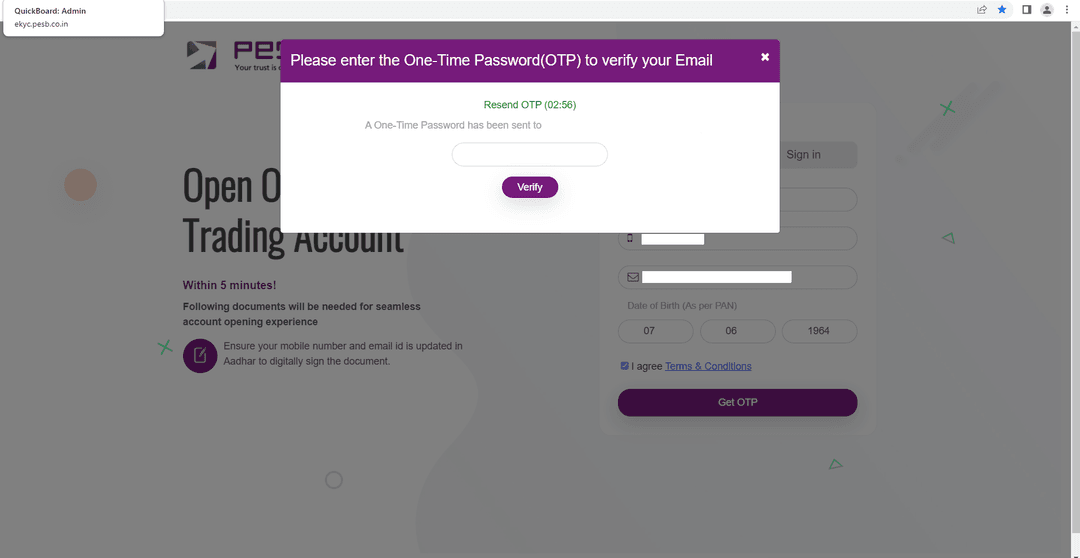
Verify your email ID by entering the OTP received via email.
This verification ensures that the email address provided belongs to you and will be used for future communications and important account updates.
First you need to authenticate your mobile number by entering the OTP received on your mobile number.
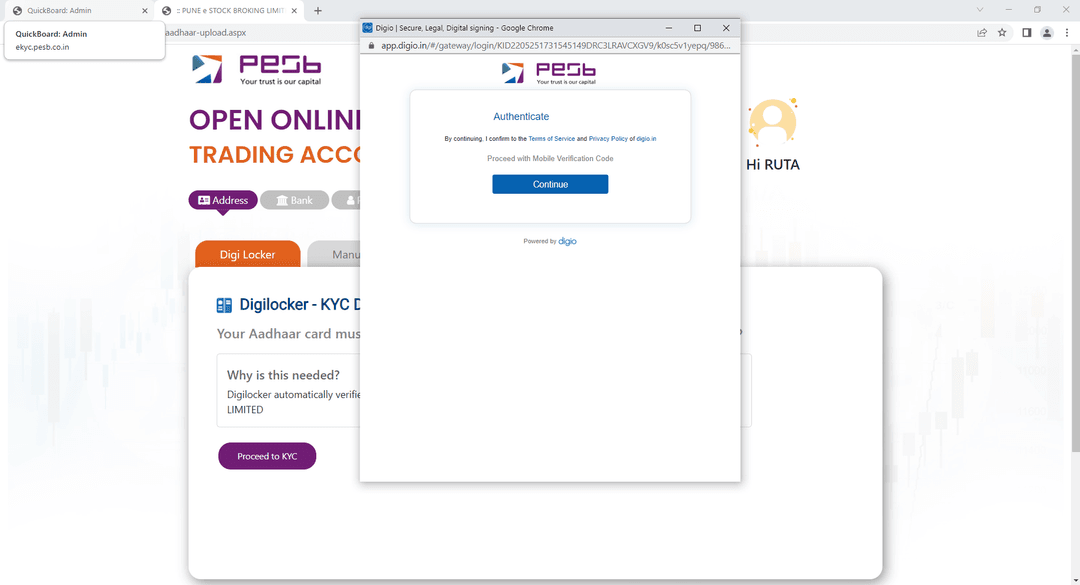
After that click on "Authenticate Aadhaar" button to proceed with the verification process.
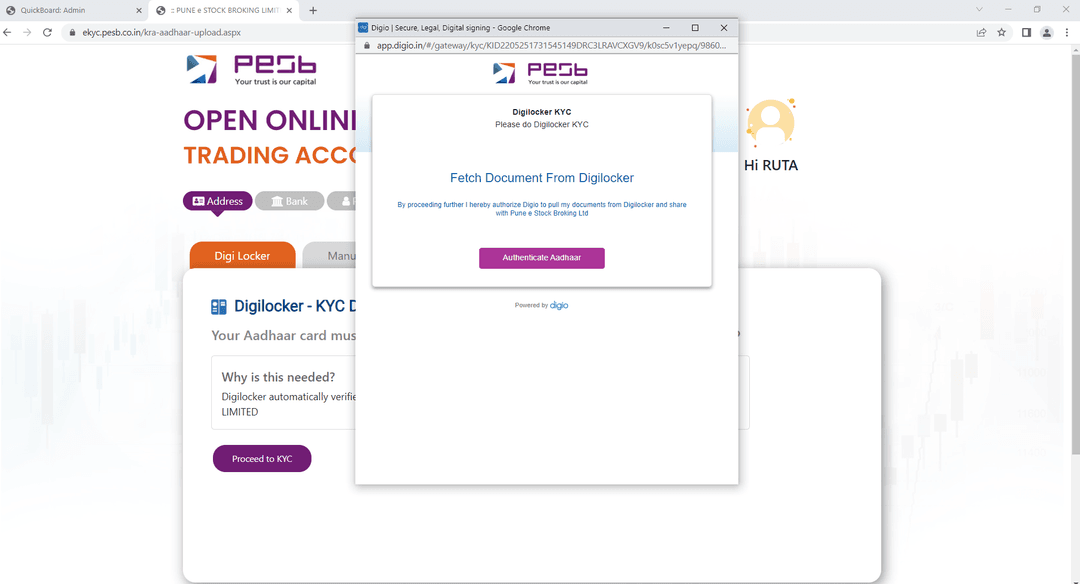
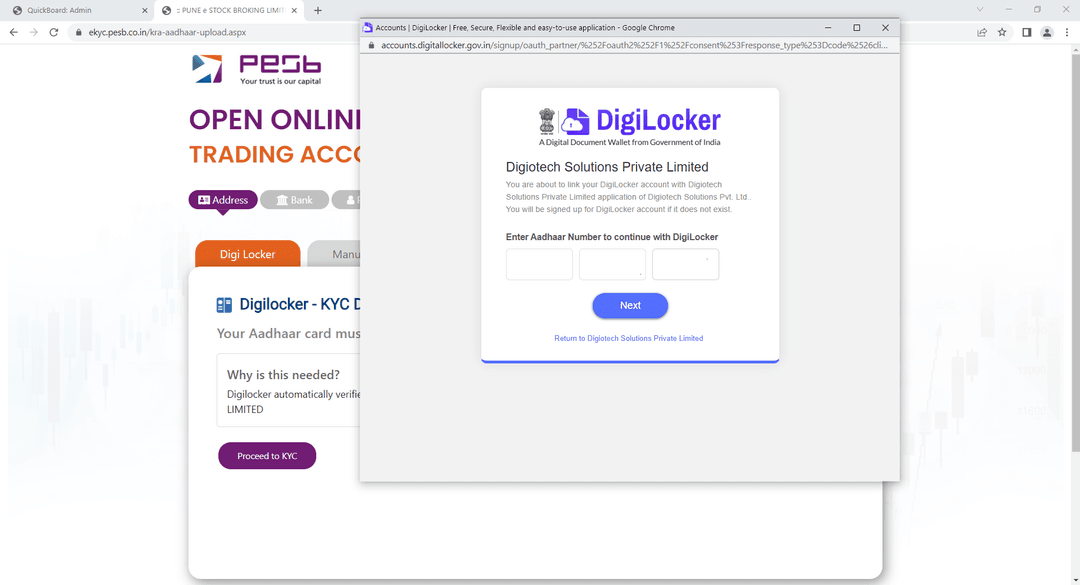
Then DigiLocker window will be opened where you need to enter the Aadhaar number.
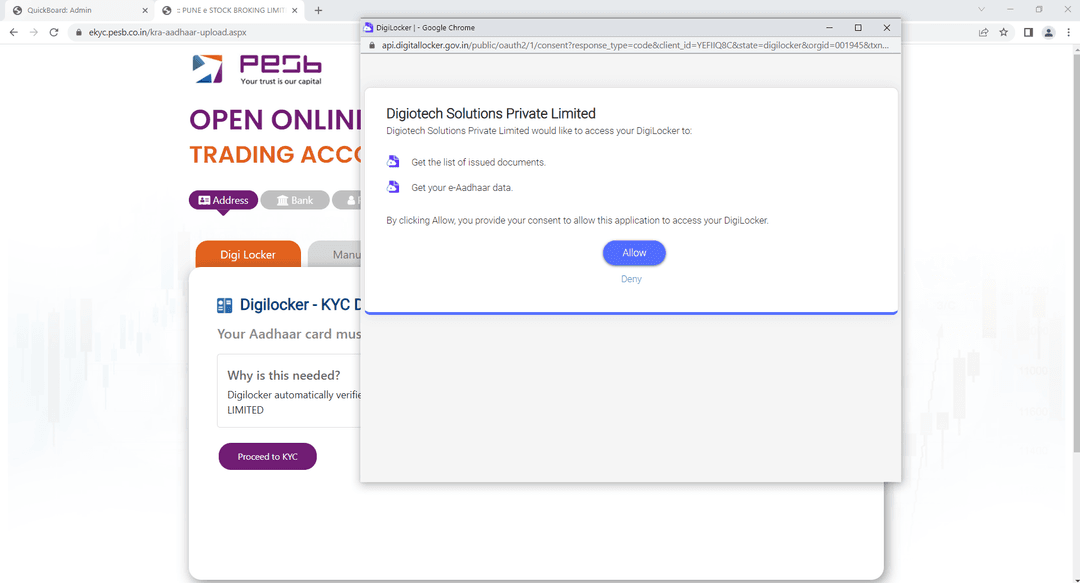
After that click on "Allow" to grant DigiLocker access to your Aadhaar information.
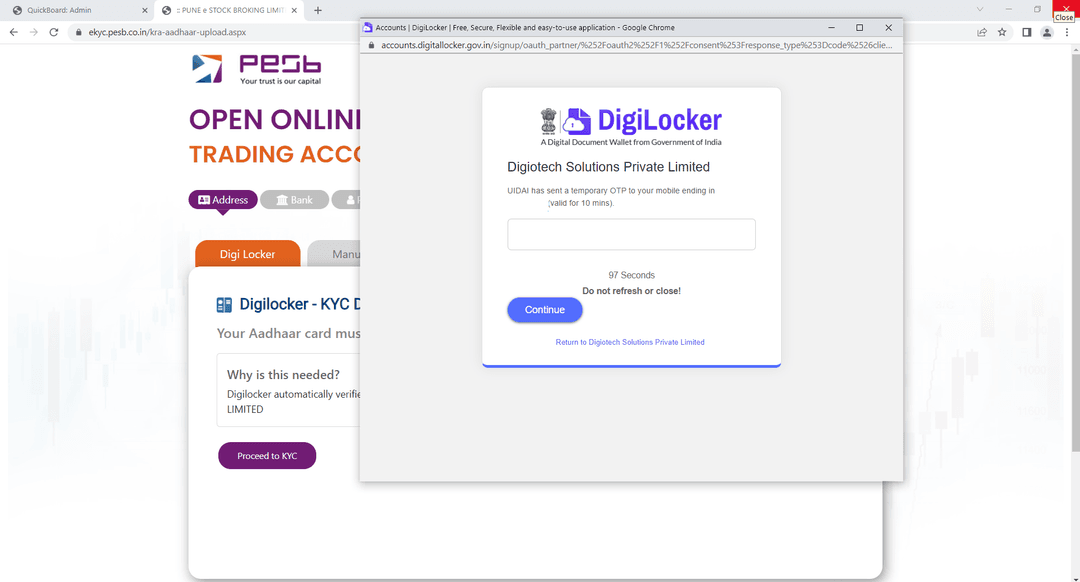
Enter the OTP which will be received on mobile number which is linked to Aadhaar card.
Data will be fetched from DigiLocker automatically and populated in your application form.
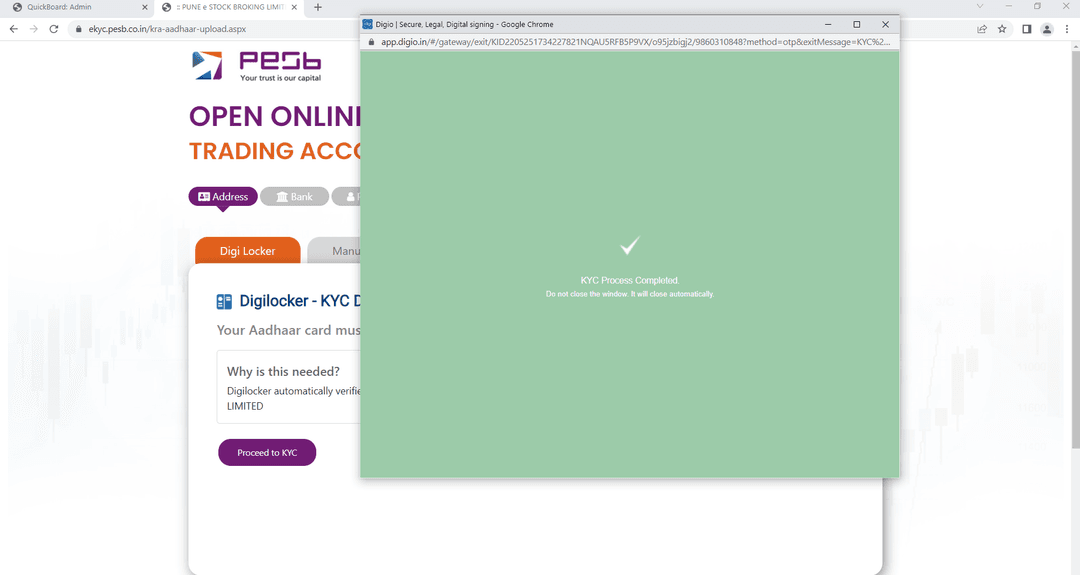
If DigiLocker doesn't work, use this manual process:
In case DigiLocker doesn't work, proceed through Manual Entry option:
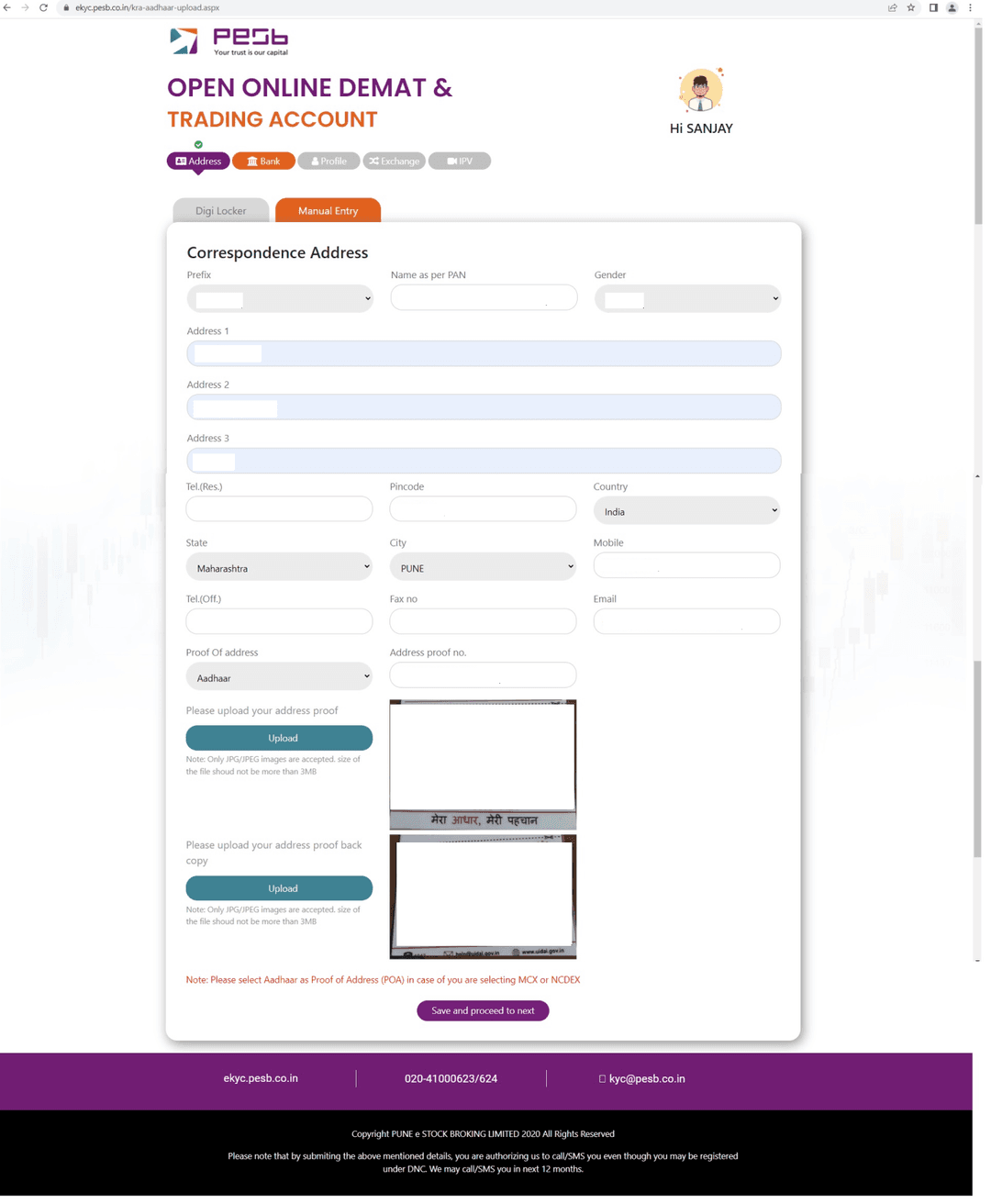
Choose your bank name from the dropdown list.
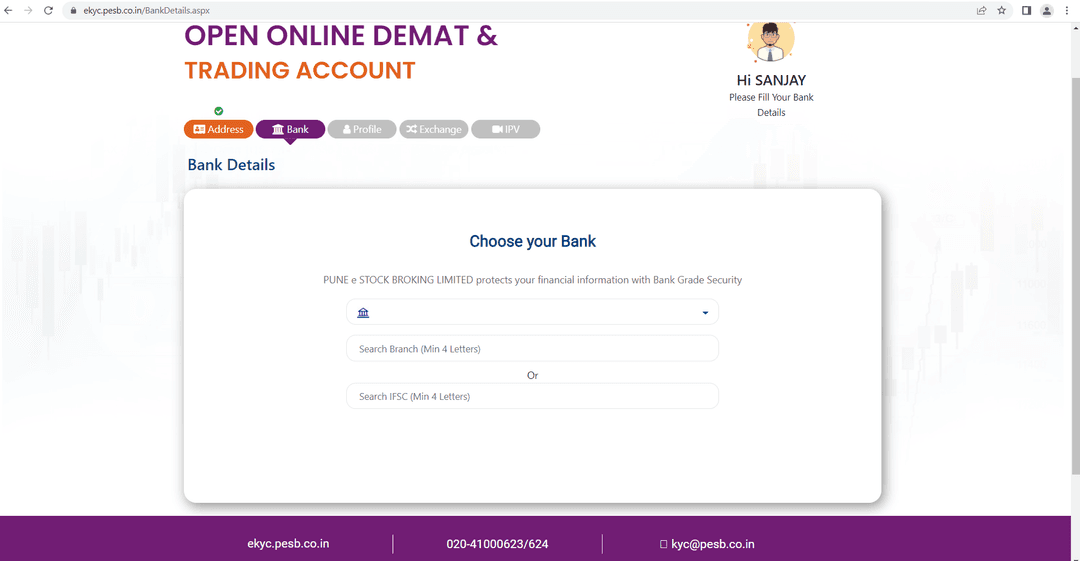
Search by entering the IFSC code (use second dropdown list) & after that enter account number.
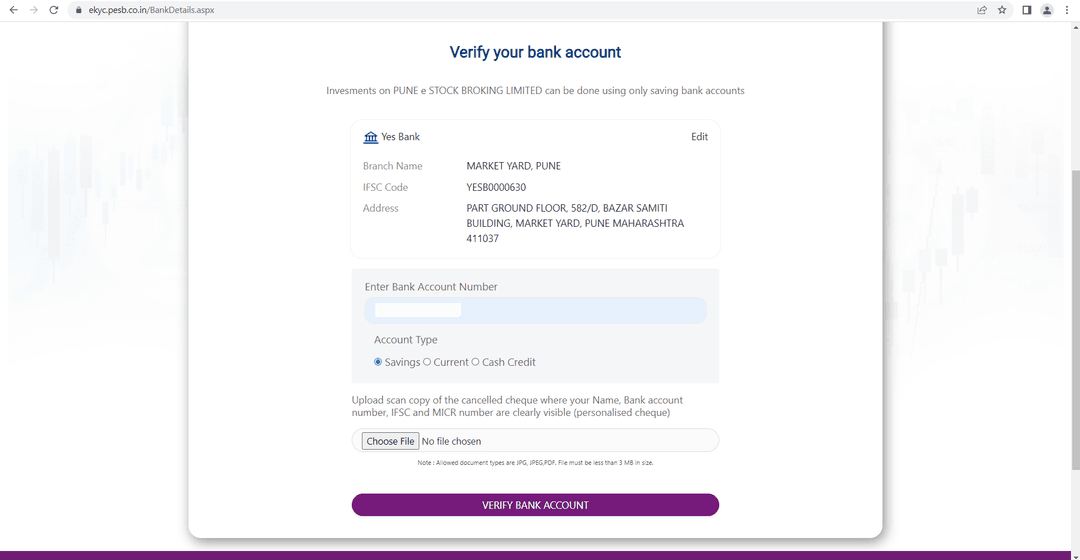
Choose the file (bank proof) & crop it properly if needed, rotate it & then upload it.
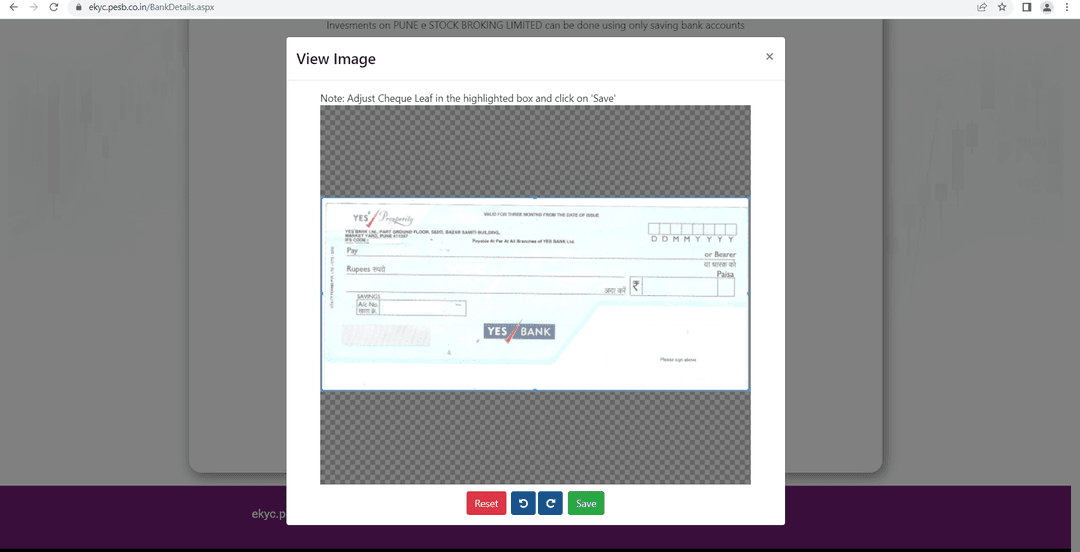
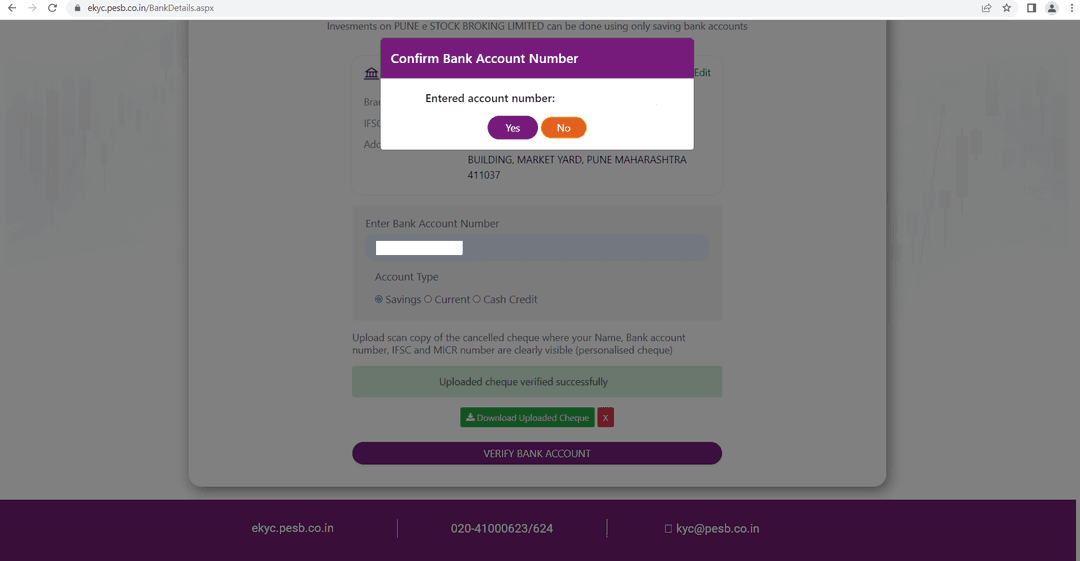
Confirm account number, then save & proceed to the next step.
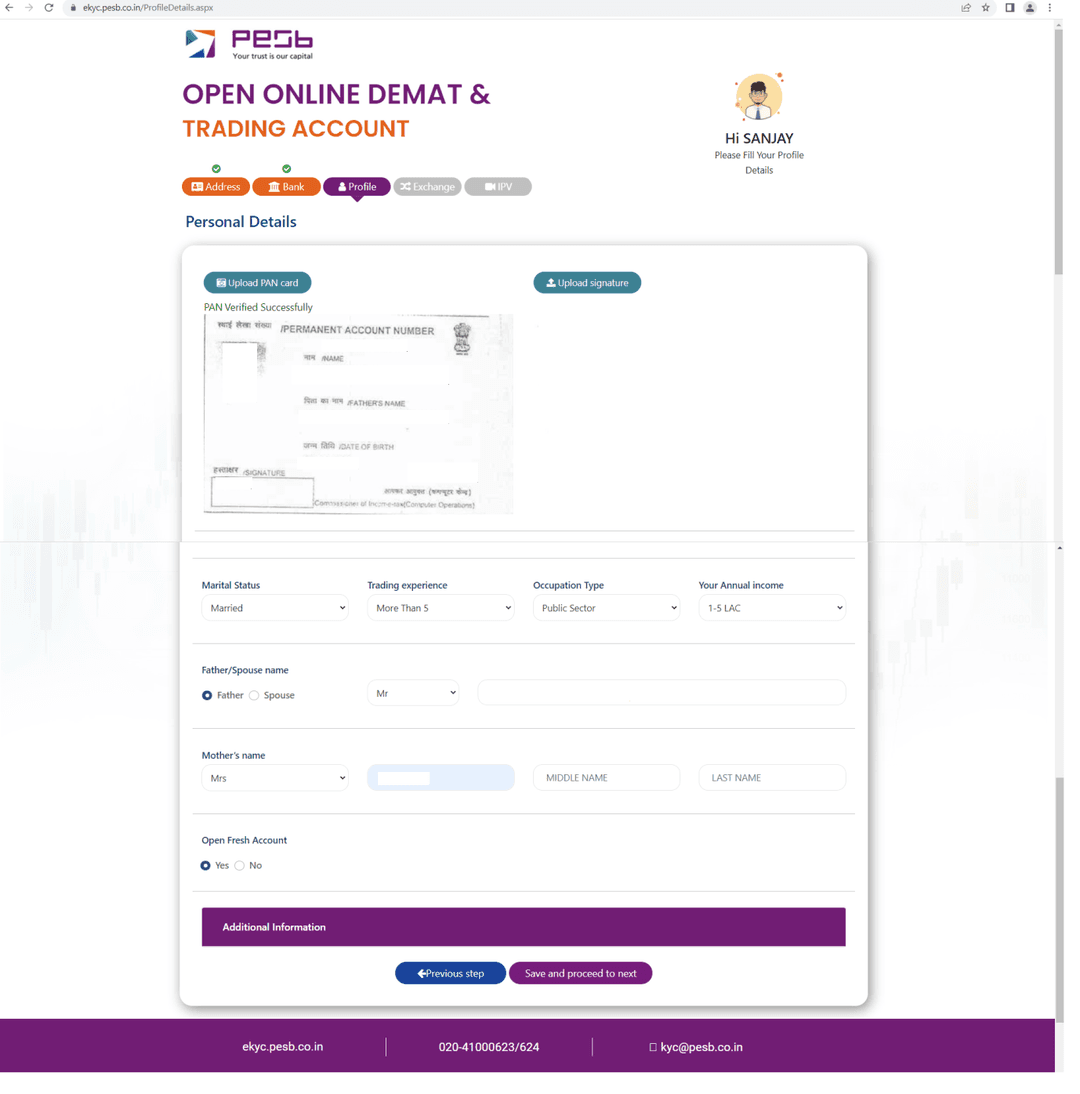
Upload your PAN copy (get it verified), upload signature on plain white paper & then fill your basic information.
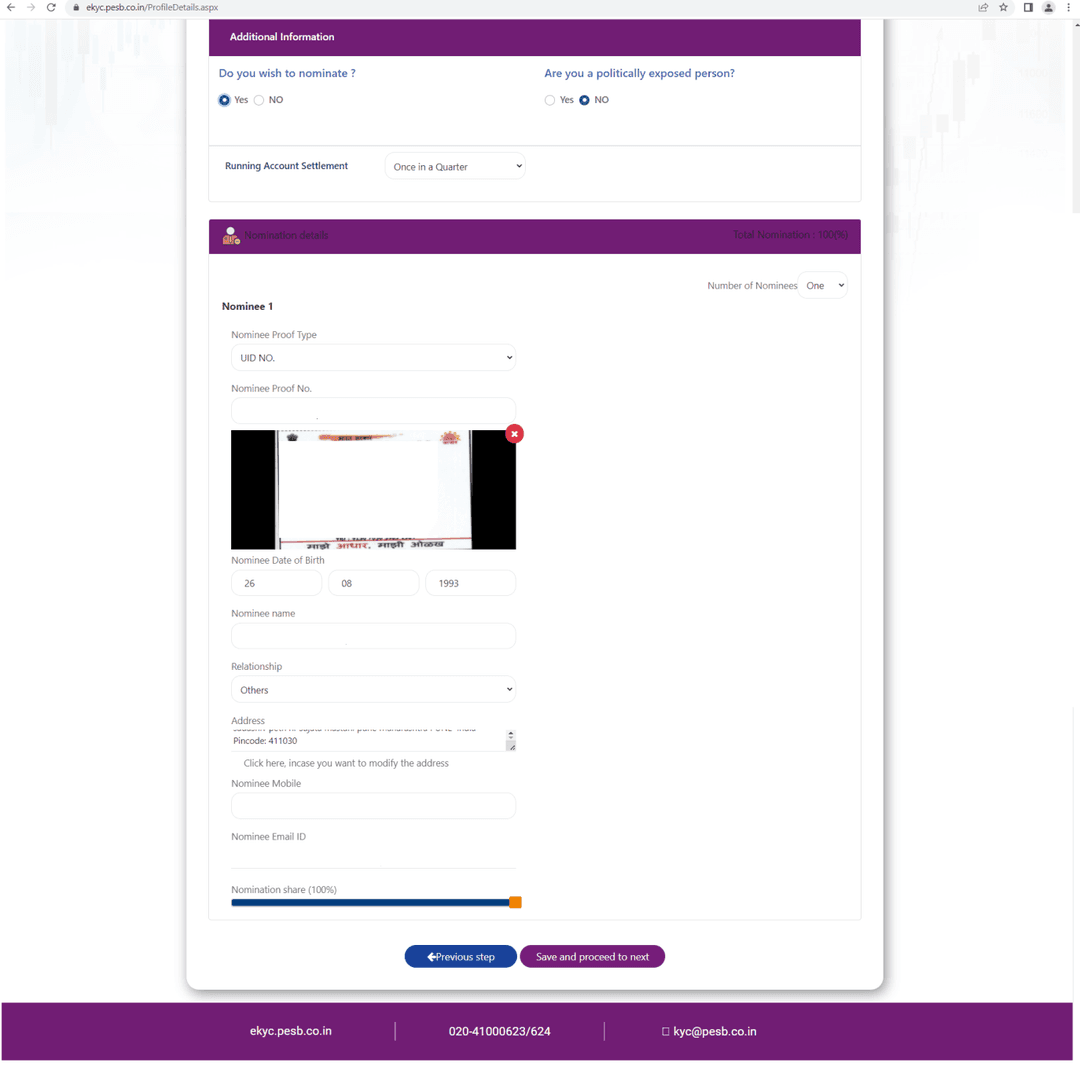
In additional information section, add nominee details & identity proof (if DP+Trading / Only DP account).
Select the segments in which you want to trade (NSE & BSE is selected by default).
If you select F&O/Currency/Commodity/SLB, you need to upload valid proof i.e., latest 6 month bank statement/ITR.
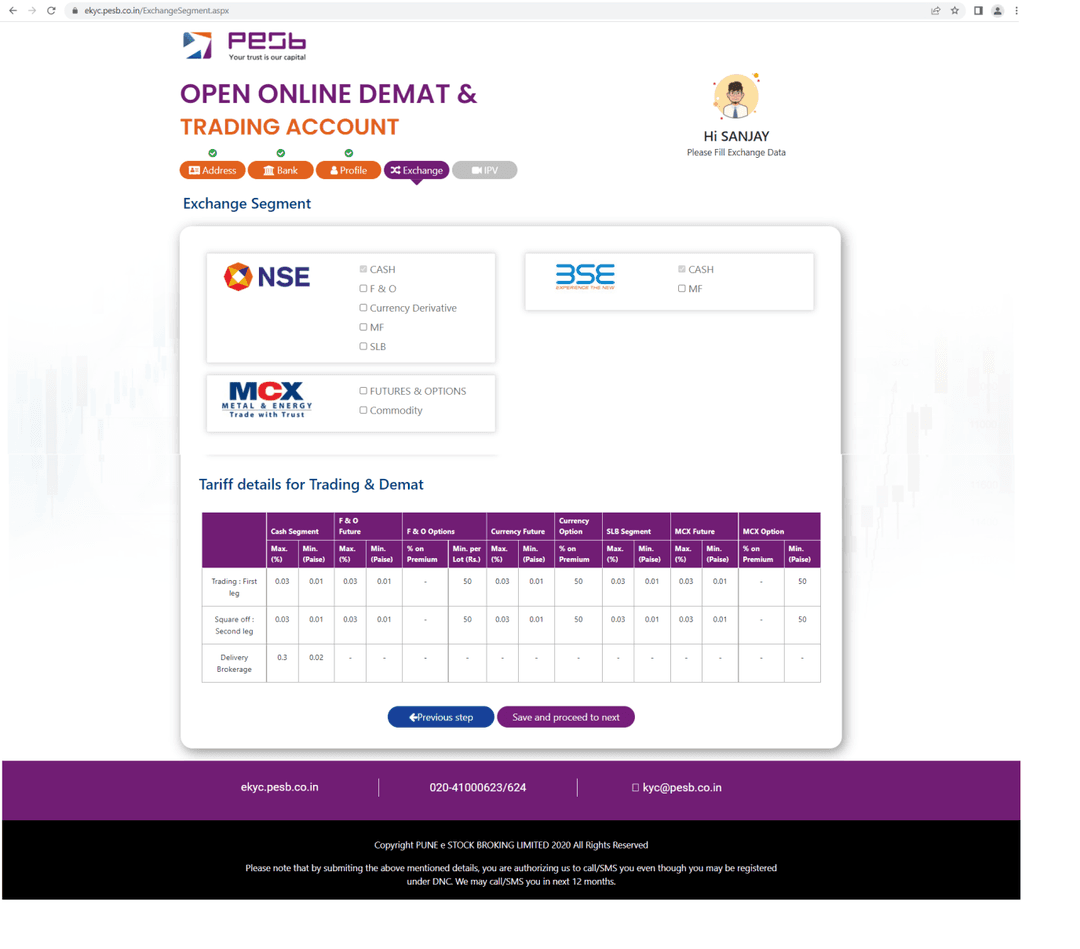
If you have completed your address stage through DigiLocker, you just need to click your photo.
If you have completed your address stage through Manual Entry, you need to shoot video by reading OTP (system generated) & then you need to click your photo.
For IPV stage you must turn ON your device location & allow microphone & camera access. Chrome version should be updated.
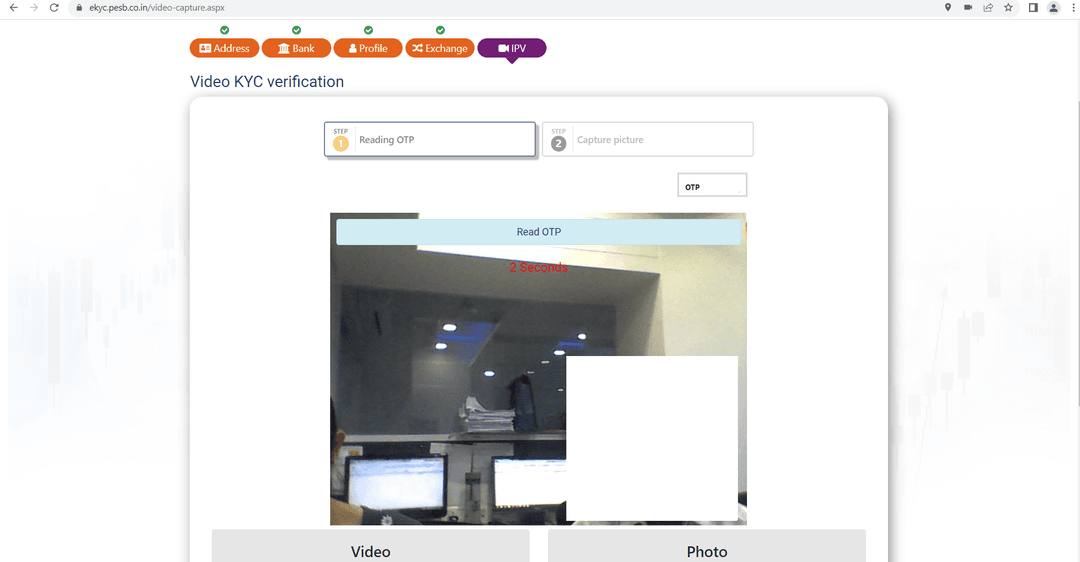
Click your photo as required for the verification process. Make sure you are in good lighting and your face is clearly visible.
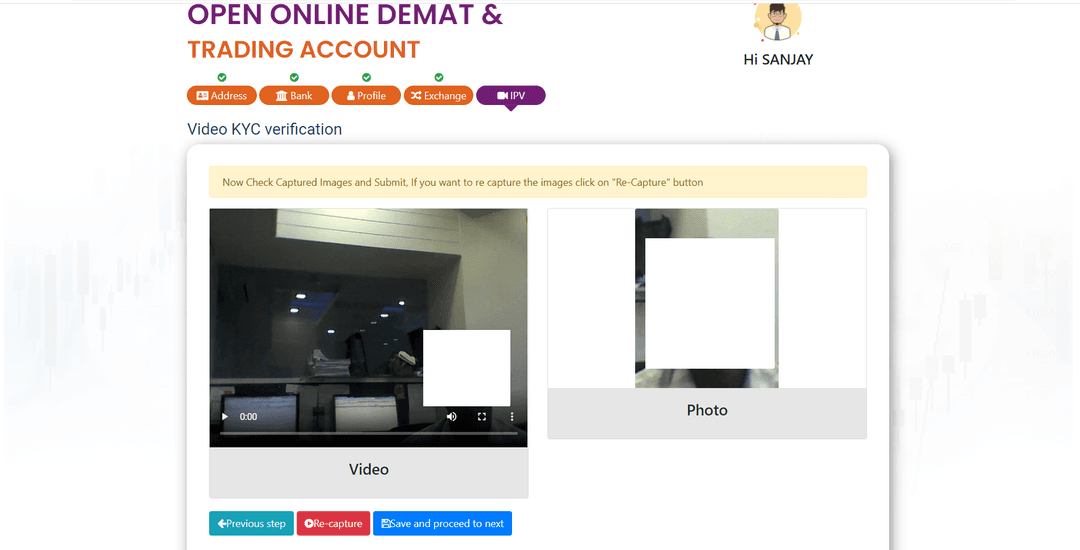
After completing the IPV process, you will see the confirmation screen. Your verification is now complete.
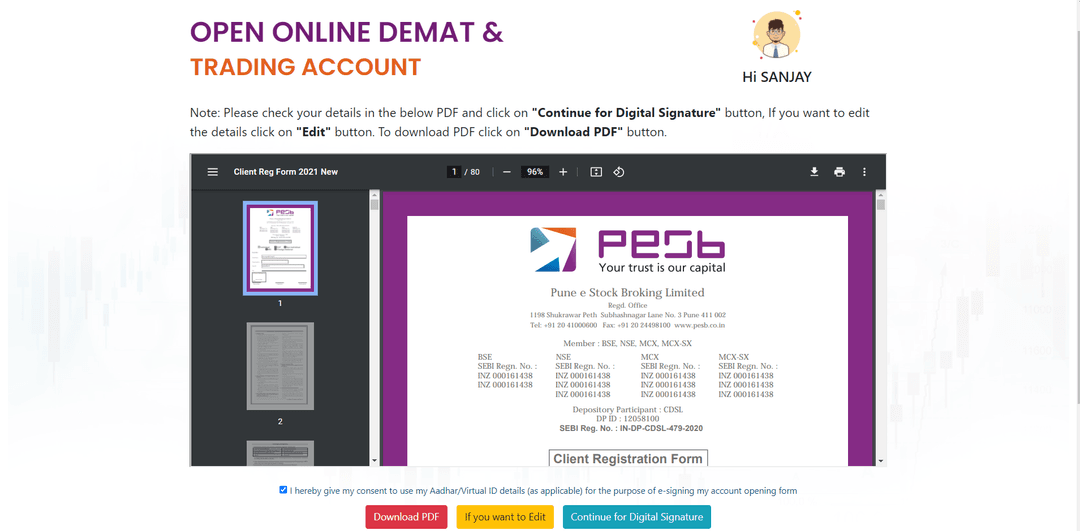
After saving the IPV, you will see the PDF on window. Below that there will be 3 options:
Save your application form for your records
Make changes to your application if needed
Complete the process with digital signature
Do digital signature ONLY when your application gets completely verified from verifier.
Our support team is here to help you with account opening queries.
Our customer support team is available to help with all your account opening queries.
Send us your queries and we'll get back to you promptly with a detailed response.
 +91 20-41000623
 info@pesb.co.in